With the Google Meet integration, Kinpal creates a Google Meet link on your Google account at the moment you finalize a poll. The link goes into the event, the calendar invite and the confirmation emails, so participants never wait for a link to follow.

How it works

  1. You connect your Google account once, from your settings.
  2. When you create a poll, you choose Google Meet as the video call. The poll shows “Google Meet” to participants while voting is open; there is no link yet.
  3. When you finalize the poll, Kinpal creates a Google Meet meeting space on your Google account and attaches its link to the event.
The meeting space belongs to the Google account you connected, so it follows that account’s Meet settings, such as who can join without asking. Kinpal does not change those settings.

Requirements

  • A Google account. A personal Google account or a Google Workspace account both work. On Google Workspace, your administrator must allow Google Meet and let you connect third party apps.
  • The Google Meet integration must be enabled on the Kinpal instance you use. On kinpal.com it is available to all accounts; on a self-hosted instance the administrator turns it on.
  • Google Meet works on every plan, on kinpal.com and self-hosted alike; the link is created when the poll is finalized.

Adding the app

1

Open Conferencing settings

In Kinpal, open Settings from the sidebar and choose Conferencing.
2

Connect your account

Next to Google Meet, click Connect. You are sent to Google to choose an account and approve the connection.
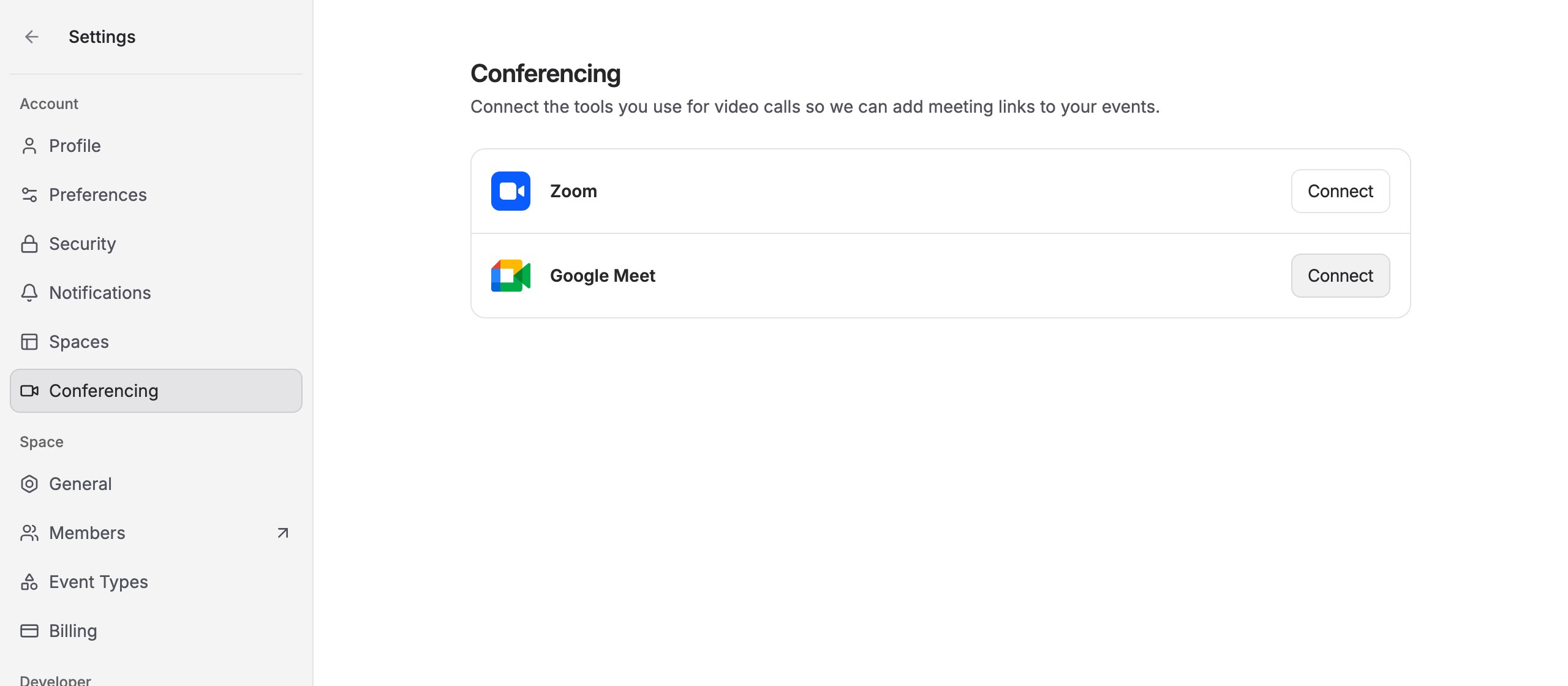
The Conferencing settings page listing Zoom and Google Meet, each with a Connect button
3

Approve the permissions

Google shows what Kinpal is asking for (listed under Permissions). Make sure the Google Meet permission is selected, then click Continue. You are returned to Kinpal, where the email address of your Google account appears next to Google Meet.
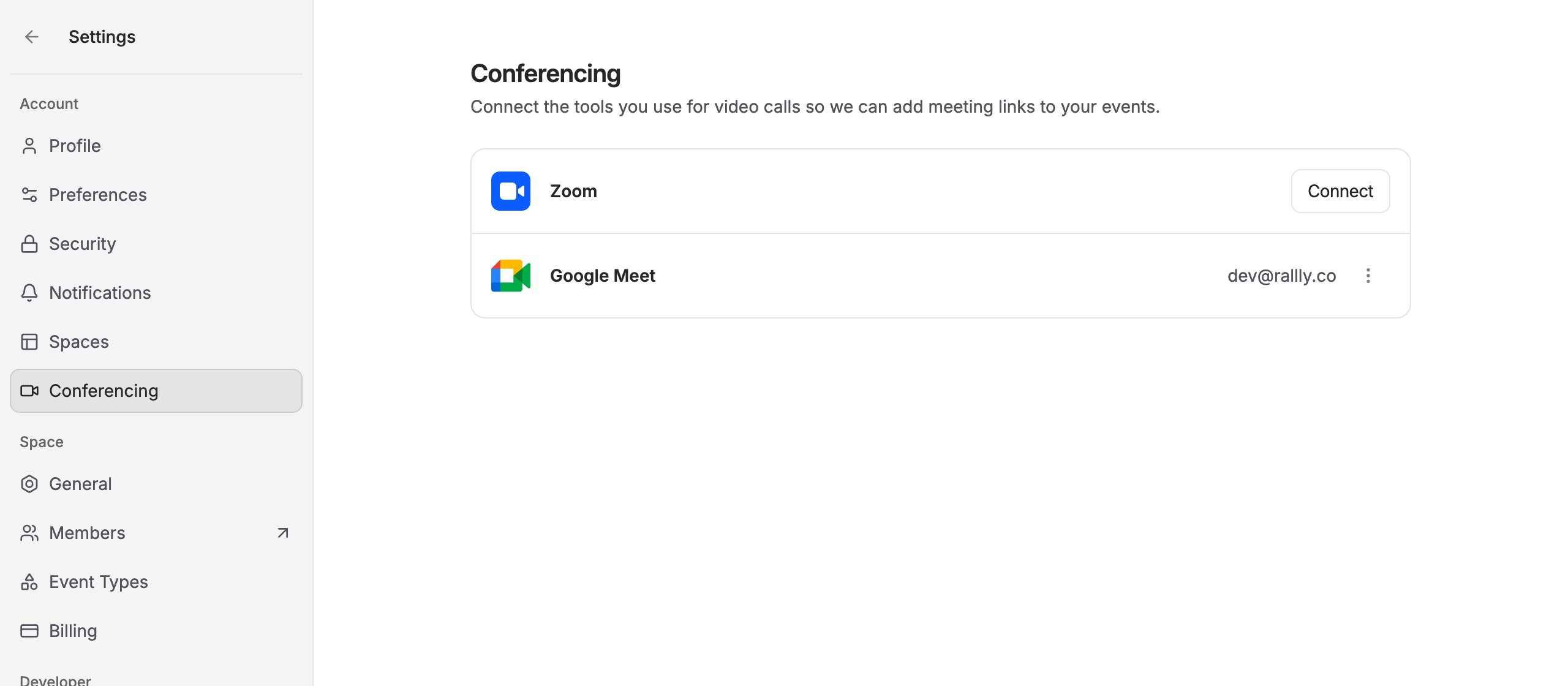
The Conferencing settings page showing the connected account's email address next to Google Meet
You can connect one Google account for Google Meet. To switch to a different Google account, disconnect the current one, then connect the new one.

If Google Calendar is already connected

Google Calendar and Google Meet are separate connections in Kinpal, but they use the same Google sign in. If you connect Google Meet with the Google account you already connected for Google Calendar, Google asks you to approve the Meet permission, and the calendar access you approved earlier is kept. Kinpal keeps a single set of tokens for that Google account, covering both the calendar access you approved earlier and the new Meet permission. Your calendar connection is not affected. You can also connect Google Meet with a different Google account from the one you use for Google Calendar. Each Google account then has its own connection and its own tokens.

Using the integration

Choosing Google Meet for a poll

When creating a poll, click Add location and choose Google Meet under Video call.
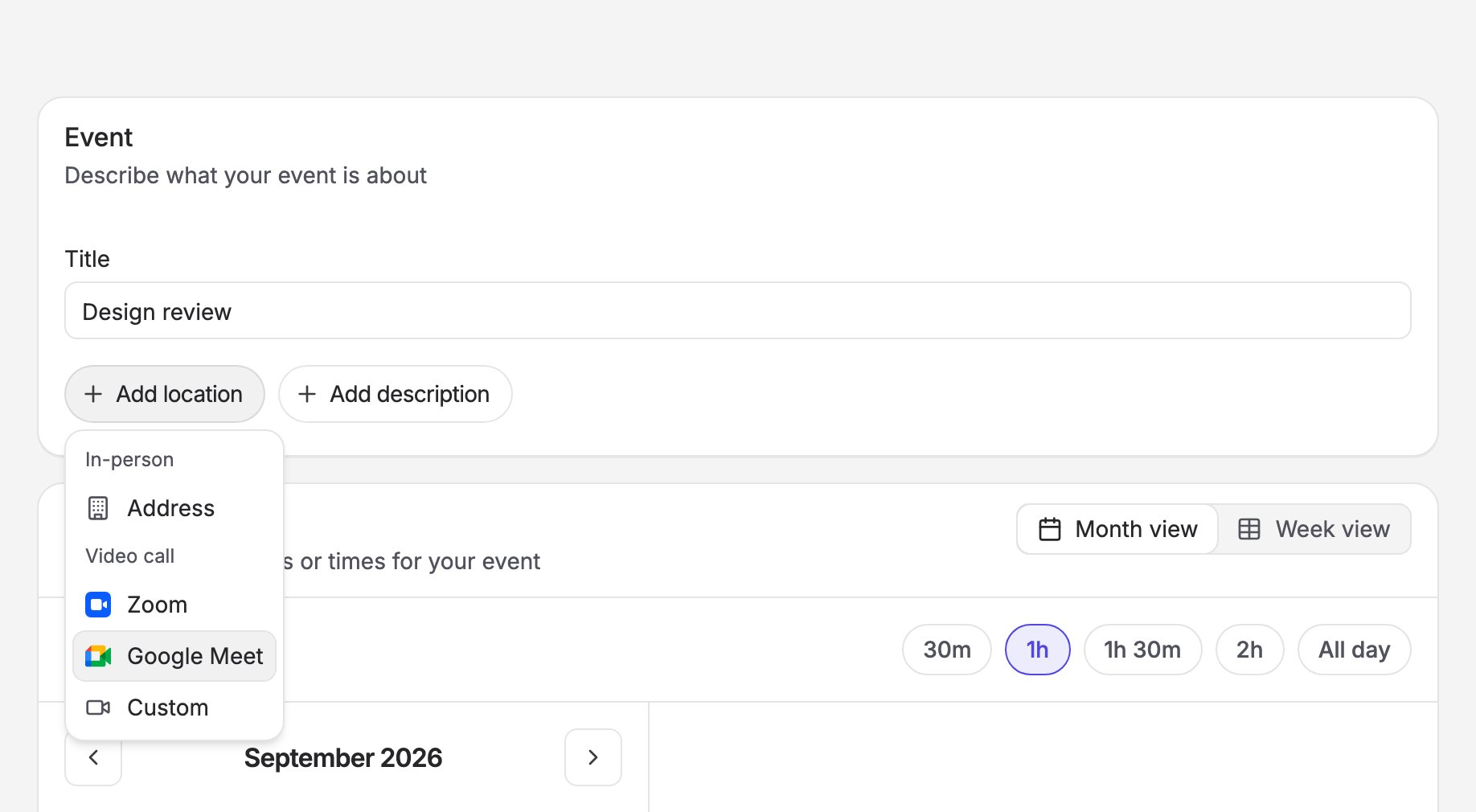
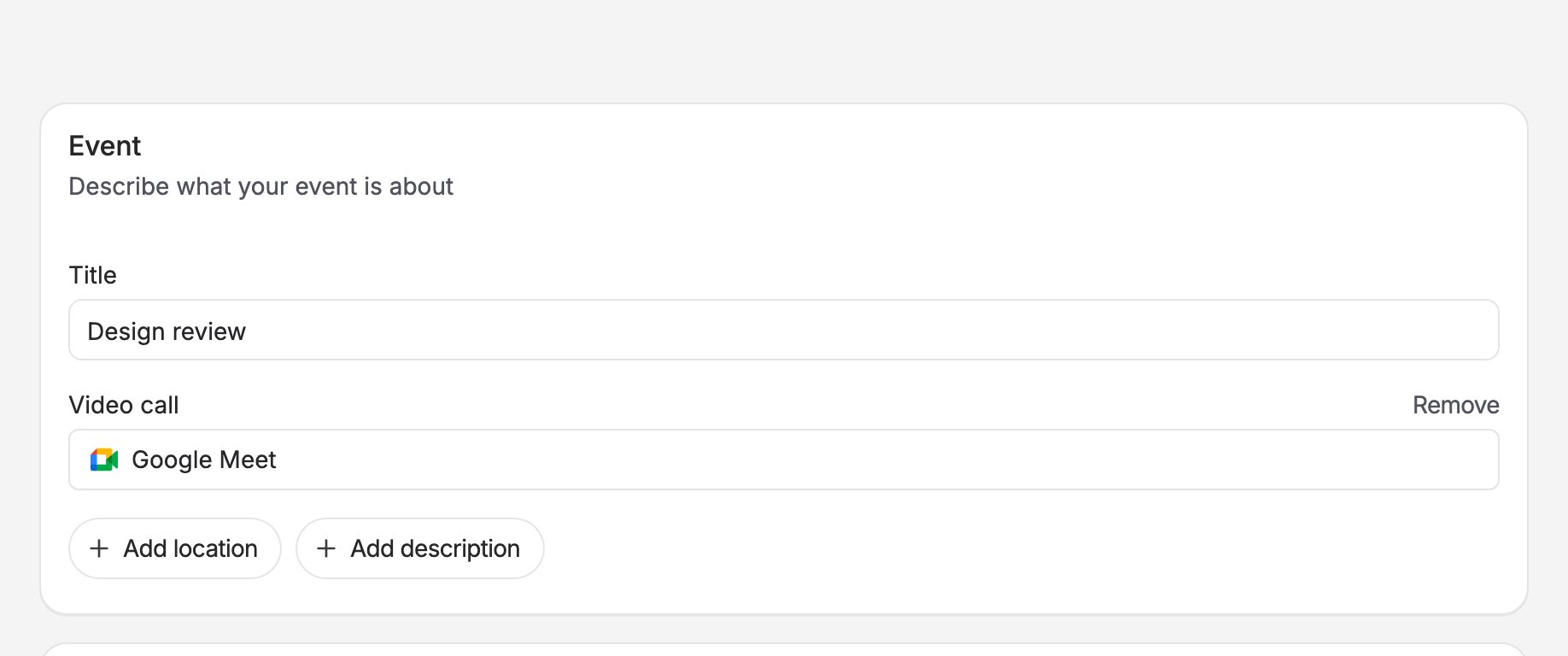
The Add location menu on the poll form, with Address under In-person and Zoom, Google Meet and Custom under Video call
The form shows “Google Meet” as the video call for this poll.
The poll form with Google Meet chosen as the video call
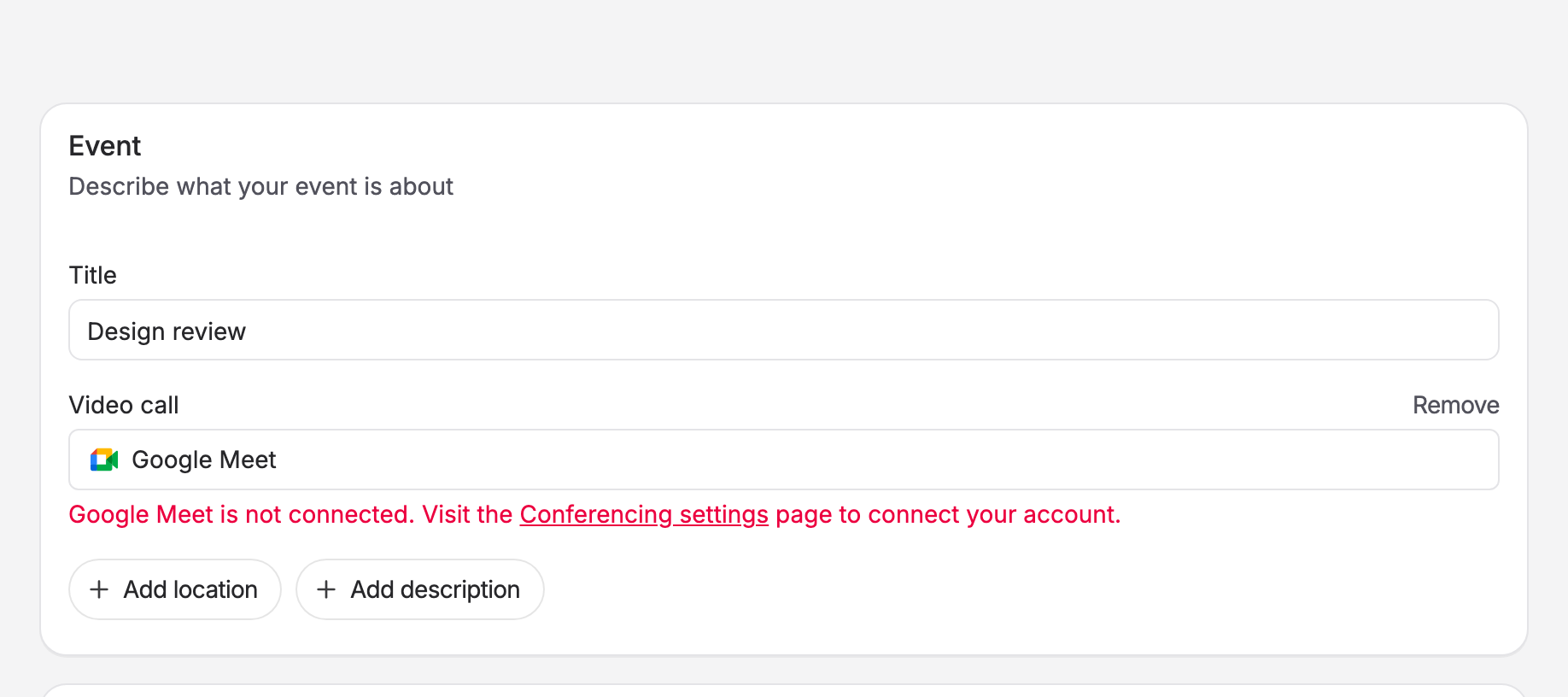
If your Google Meet account is not connected, the form tells you so and links to Conferencing settings.
The poll form showing the message that Google Meet is not connected, with a link to Conferencing settings
Participants see “Google Meet” on the poll page while voting is open. No meeting link exists yet.

Finalizing the poll

When you finalize the poll and pick the winning time, Kinpal:
  1. Creates a Google Meet meeting space on your Google account.
  2. Attaches the meeting link to the event.
  3. Includes the link in the calendar invite (.ics) and in the confirmation emails sent to you and to participants.
A meeting space is a reusable Meet room with its own link. It is not a Google Calendar event, so Kinpal does not add anything to your Google Calendar through this integration, and the link is not tied to the scheduled time. If the link cannot be created, for example because the Google connection has expired or was removed, the poll stays open and Kinpal shows an error. Reconnect your account in Conferencing settings and finalize again.

Which account hosts the meeting

The meeting space is created on the Google account of the poll’s organizer. If a space member finalizes a poll organized by someone else, the meeting is still created on the organizer’s Google account, and the organizer is the host.

Permissions

When you connect, Kinpal asks Google for these permissions: The meetings.space.created permission only lets Kinpal create meeting spaces and manage the spaces it created itself. Kinpal does not read your other meetings, recordings, transcripts, participants, contacts or email, and does not join or record meetings.

Data Kinpal stores

For a connected Google account, Kinpal stores:
  • Your Google account id and email address, to identify the connection and show it in your settings.
  • The access token and refresh token Google issues, encrypted at rest, so Kinpal can create meeting spaces on your behalf without asking you to sign in each time. If the same Google account is also connected for Google Calendar, both connections share these tokens.
For each finalized poll, Kinpal stores the link and meeting code of the meeting space it created, as part of the event. Kinpal does not store the content of any meeting.

Removing the app

From Kinpal

  1. Open Settings, then Conferencing.
  2. Next to Google Meet, click the More options button and choose Disconnect.
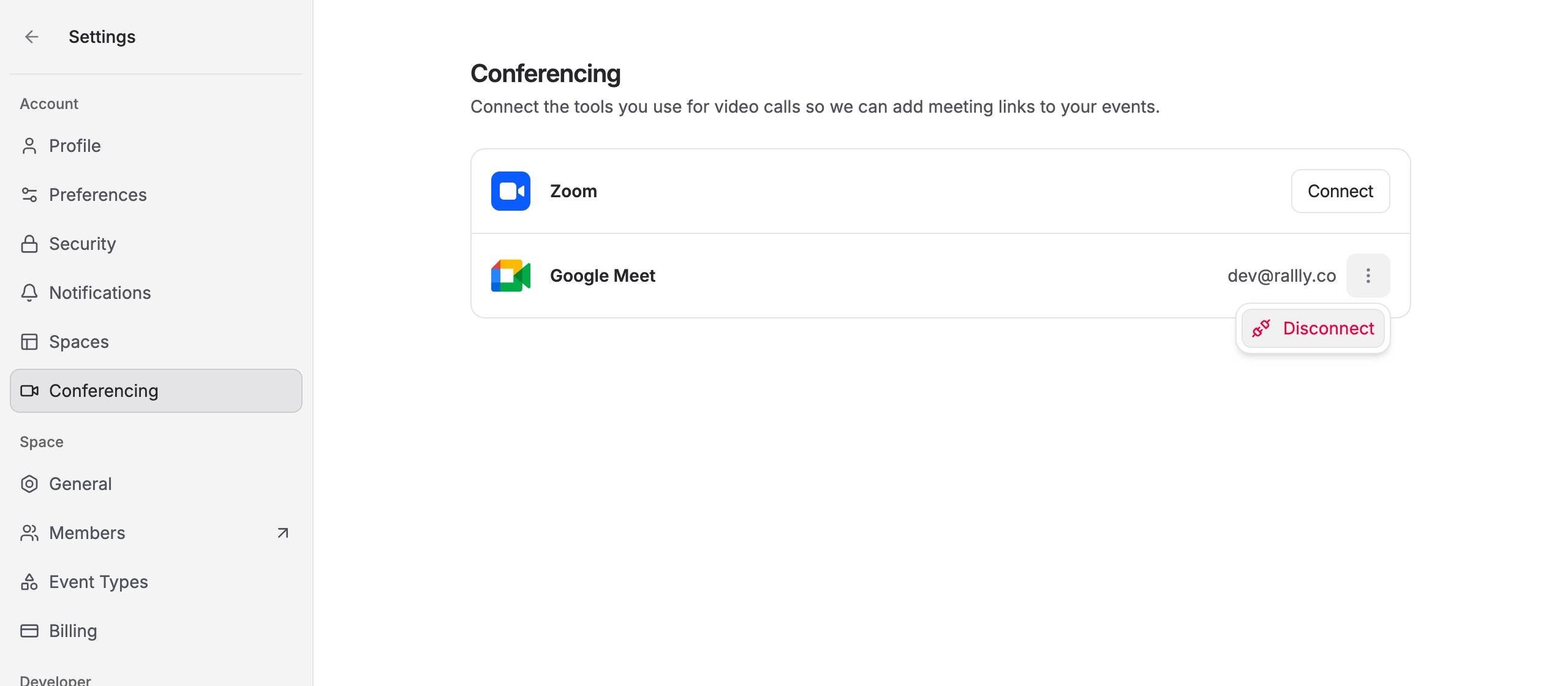
The connected Google Meet row with its menu open, showing Disconnect
The connection is removed immediately and Kinpal stops creating Google Meet links for you. What happens to the tokens depends on whether the same Google account is connected for Google Calendar:
  • If it is not, Kinpal deletes the tokens it stored for that Google account.
  • If it is, Kinpal keeps the tokens, because your calendar connection still needs them.
Disconnecting in Kinpal does not revoke the access you granted in your Google account, because the same Google access can also serve your calendar connection. To revoke it, remove Kinpal from your Google account as described below. Polls that already chose Google Meet keep that choice but can no longer be finalized with a Google Meet link until an account is connected again. Links Kinpal already created keep working.

From your Google account

To revoke Kinpal’s access on the Google side:
  1. Open the third party apps and services page of your Google account.
  2. Select Kinpal.
  3. Click Delete all connections you have with Kinpal and confirm.
This revokes every permission Kinpal holds on that Google account, including Google Calendar access if you connected it. Google does not tell Kinpal, so the connections still appear in your settings until you disconnect them in Kinpal as well; Kinpal can no longer use them. If you sign in to Kinpal with Google, you can still do so; Google asks you to approve Kinpal again the next time.

Troubleshooting

“Google Meet is not connected” when creating a poll. Your Kinpal account has no Google Meet connection, or it was removed. Connect one in Conferencing settings and choose Google Meet again. Finalizing fails with a video call error. The Google connection has expired, Kinpal’s access was removed from your Google account, or the Google Meet permission was not selected when you connected. Disconnect and reconnect Google Meet in Conferencing settings, then finalize again. The poll is unchanged until finalizing succeeds. Google blocks the connection. On a Google Workspace account, your administrator may not allow third party apps or may have turned off Google Meet for your account. Ask your administrator to allow Kinpal, or connect a different Google account. Participants have to ask to join. Who can join without asking follows the Meet settings of the host’s Google account or Workspace organization. The host can admit people from the meeting, or change the meeting access in Meet’s host controls. The meeting was created on the wrong account. The meeting is always created on the poll organizer’s connected Google account. Check which account is connected in Conferencing settings. Still stuck? Contact support.