Collect responses by sharing the invite link or inviting people by email
1
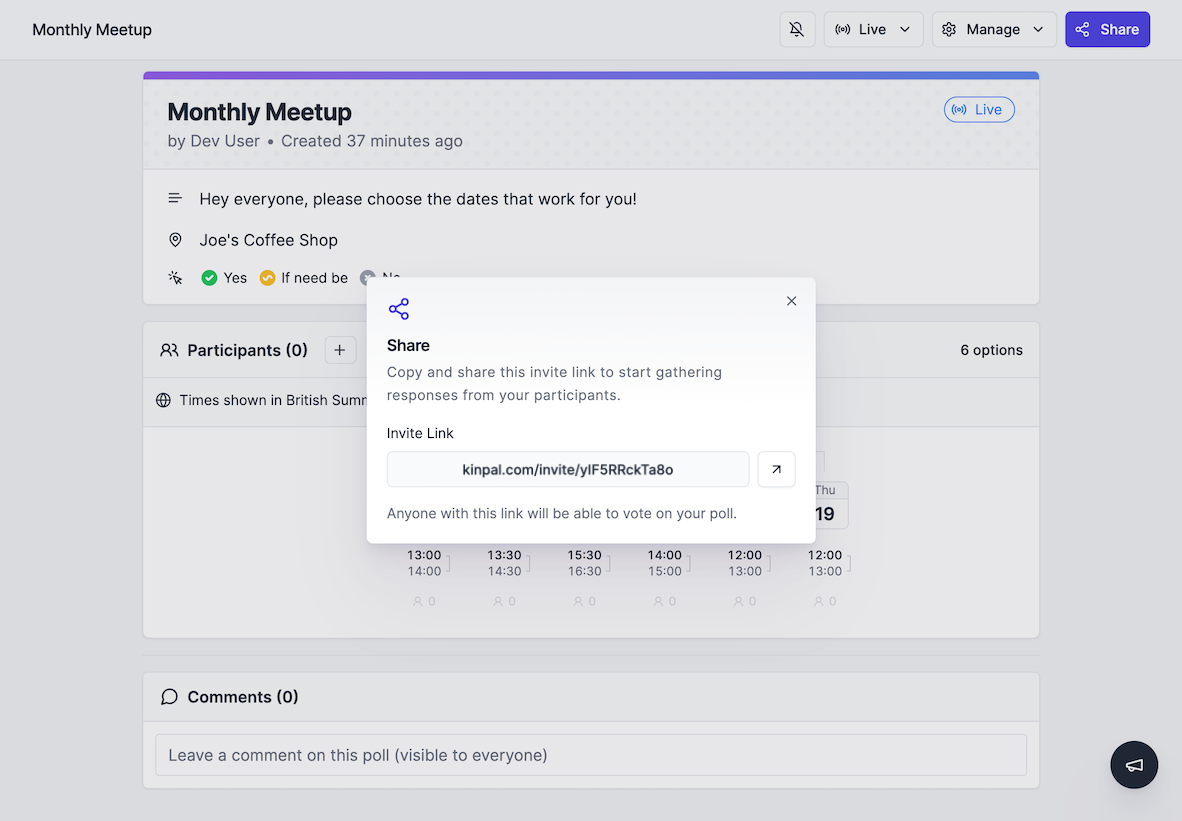
Open the Share dialog
The Share dialog opens right after you create your poll. You can get
back to it at any time by clicking the Share button on your poll page.To share the invite link, click Copy and paste it anywhere: chat,
email or a calendar invite. Anyone with the link can vote on your poll.To invite by email, enter an email address and click Send invite.
Kinpal sends that person an email with a link to your poll.
Each invitee shows whether the invite was sent, opened or responded to
Inviting by email requires a Pro subscription on Kinpal Cloud. Sharing the invite link is free.
2
Wait for participants to vote
Participants open the invite link, pick the options that work for them and
save their response.
Have a look at the participant guide for details on how participants can vote.
As responses come in, you can review the results on your poll page to see
which dates are preferred. If you invited people by email, the Share
dialog also shows who has opened their invite and who has responded.
{"docsConfig":{"theme":"mint","$schema":"https://mintlify.com/docs.json","name":"Kinpal","colors":{"primary":"#4f46e5","light":"#847eed","dark":"#4f46e5"},"logo":{"light":"https://mintcdn.com/kinpal/y3M2SDBk17jnSgHO/logo/logo.svg?fit=max\u0026auto=format\u0026n=y3M2SDBk17jnSgHO\u0026q=85\u0026s=a7a12f570e07baf589d0e5bad741c035","dark":"https://mintcdn.com/kinpal/y3M2SDBk17jnSgHO/logo/logo.svg?fit=max\u0026auto=format\u0026n=y3M2SDBk17jnSgHO\u0026q=85\u0026s=a7a12f570e07baf589d0e5bad741c035","href":"https://kinpal.com"},"favicon":"https://mintcdn.com/kinpal/RGIavU-Cptvwp6dd/favicon.png?fit=max\u0026auto=format\u0026n=RGIavU-Cptvwp6dd\u0026q=85\u0026s=1357e7fe6b9f5ef95c4f54d3afbcdb35","background":{"color":{"light":"#FFFFFF","dark":"#18181B"}},"navbar":{"links":[{"href":"https://support.kinpal.com/contact/support","label":"Contact"}],"primary":{"type":"button","label":"Go to App","href":"https://app.kinpal.com"}},"footer":{"socials":{"x":"https://x.com/kinpalai","linkedin":"https://www.linkedin.com/company/kinpal","github":"https://github.com/kinpalai","discord":"https://discord.gg/ZRZKqJf3tY","website":"https://kinpal.com"}},"styling":{"latex":false},"navigation":{"pages":[]}},"deployment":{"deploymentMetadataValue":{"subdomain":"kinpal","hasAudioNarration":false,"actualSubdomain":"kinpal","customDomains":["support.kinpal.com"],"gitSource":{"type":"github","owner":"kinpalai","repo":"rallly","deployBranch":"open","contentDirectory":"apps/docs","isPrivate":false,"mountPath":"","label":""},"chroma":{"liveDeploymentHistoryId":"6adb83fd4aaa62894f12ee34","collectionId":"1fca23ae-cdca-46b2-836b-feb312d60f03","schemaVersion":"v3","latestBuiltDeploymentHistoryId":"6adb83fd4aaa62894f12ee34"},"entitlements":{},"buildId":"6adb83fd4aaa62894f12ee34","clientVersion":"0.0.3965","searchFilterCounts":[{"language":"default","tag":"Documentation","count":18},{"language":"default","tag":"Spaces","count":6},{"language":"default","tag":"Integrations","count":4},{"language":"default","tag":"How it works","count":3},{"language":"default","tag":"Get Started","count":2},{"language":"default","tag":"Guides","count":2},{"language":"default","tag":"Contact","count":1}]},"assistantConfig":{},"hasChatPermissions":false,"hasWebMcpPermissions":false,"toggles":[],"isAtlas":false,"googleFontsInlined":false},"customCss":[{"filePath":"style.css","content":":root{--gray-50:250 250 250;--gray-100:244 244 245;--gray-200:228 228 231;--gray-300:212 212 216;--gray-400:161 161 170;--gray-500:113 113 122;--gray-600:82 82 91;--gray-700:63 63 70;--gray-800:39 39 42;--gray-900:24 24 27;--gray-950:9 9 11}#content-area{color:rgb(39 39 42)}.dark #content-area,.dark #content-area h1,.dark #content-area h2,.dark #content-area h3,.dark #content-area h4{color:rgb(255 255 255)}.dark{--primary-light:132 126 237;--primary-dark:132 126 237}.dark .bg-primary-dark{background-color:rgb(132 126 237)}.dark #content-area .prose pre.shiki,.dark #content-area .prose pre.shiki span{background-color:var(--shiki-dark-bg)!important;color:var(--shiki-dark)!important}#content-area table td code,#content-area table th code{white-space:nowrap}"}],"page":{"pagePath":"workflow/invite","slug":"/workflow/invite","pageMetadata":{"icon":"circle-2","title":"Invite participants","description":"Collect responses by sharing the invite link or inviting people by email","href":"/workflow/invite"},"description":{"compiledSource":"\"use strict\";\nconst {jsx: _jsx} = arguments[0];\nconst {useMDXComponents: _provideComponents} = arguments[0];\nfunction _createMdxContent(props) {\n const _components = {\n p: \"p\",\n ..._provideComponents(),\n ...props.components\n };\n return _jsx(_components.p, {\n children: \"Collect responses by sharing the invite link or inviting people by email\"\n });\n}\nfunction MDXContent(props = {}) {\n const {wrapper: MDXLayout} = {\n ..._provideComponents(),\n ...props.components\n };\n return MDXLayout ? _jsx(MDXLayout, {\n ...props,\n children: _jsx(_createMdxContent, {\n ...props\n })\n }) : _createMdxContent(props);\n}\nreturn {\n default: MDXContent\n};\n","frontmatter":{},"scope":{}},"pageType":"default","mdx":{"mdxSource":{"compiledSource":"\"use strict\";const{Fragment:_Fragment,jsx:_jsx,jsxs:_jsxs}=arguments[0];const{useMDXComponents:_provideComponents}=arguments[0];function _createMdxContent(props){const _components={a:`a`,p:`p`,strong:`strong`,..._provideComponents(),...props.components},{Frame,Note,OptimizedImage,Step,Steps}=_components;if(!Frame)_missingMdxReference(`Frame`,true);if(!Note)_missingMdxReference(`Note`,true);if(!OptimizedImage)_missingMdxReference(`OptimizedImage`,true);if(!Step)_missingMdxReference(`Step`,true);if(!Steps)_missingMdxReference(`Steps`,true);return _jsxs(_Fragment,{children:[_jsxs(Steps,{children:[_jsxs(Step,{title:`Open the Share dialog`,children:[_jsxs(_components.p,{children:[`The `,_jsx(_components.strong,{children:`Share`}),` dialog opens right after you create your poll. You can get\nback to it at any time by clicking the `,_jsx(_components.strong,{children:`Share`}),` button on your poll page.`]}),_jsxs(_components.p,{children:[`To share the `,_jsx(_components.strong,{children:`invite link`}),`, click `,_jsx(_components.strong,{children:`Copy`}),` and paste it anywhere: chat,\nemail or a calendar invite. Anyone with the link can vote on your poll.`]}),_jsxs(_components.p,{children:[`To `,_jsx(_components.strong,{children:`invite by email`}),`, enter an email address and click `,_jsx(_components.strong,{children:`Send invite`}),`.\nKinpal sends that person an email with a link to your poll.`]}),_jsx(Frame,{caption:`Each invitee shows whether the invite was sent, opened or responded to`,children:_jsx(OptimizedImage,{src:`https://mintcdn.com/kinpal/RGIavU-Cptvwp6dd/images/workflow/invite-link.png?fit=max\u0026auto=format\u0026n=RGIavU-Cptvwp6dd\u0026q=85\u0026s=5c9910f90bc4948d91e78192517be09a`,alt:`Share dialog with the invite link and a list of email invitees`,\"data-og-width\":`1182`,width:`1182`,\"data-og-height\":`821`,height:`821`,\"data-path\":`images/workflow/invite-link.png`,\"data-optimize\":`true`,\"data-opv\":`3`,srcset:`https://mintcdn.com/kinpal/RGIavU-Cptvwp6dd/images/workflow/invite-link.png?w=280\u0026fit=max\u0026auto=format\u0026n=RGIavU-Cptvwp6dd\u0026q=85\u0026s=ad327ec6924d12caf967806c514b39dc 280w, https://mintcdn.com/kinpal/RGIavU-Cptvwp6dd/images/workflow/invite-link.png?w=560\u0026fit=max\u0026auto=format\u0026n=RGIavU-Cptvwp6dd\u0026q=85\u0026s=6d1cf60b5282fa0e6cac2d26276c2a25 560w, https://mintcdn.com/kinpal/RGIavU-Cptvwp6dd/images/workflow/invite-link.png?w=840\u0026fit=max\u0026auto=format\u0026n=RGIavU-Cptvwp6dd\u0026q=85\u0026s=e387fbc9a210ed83cdb370b87542a959 840w, https://mintcdn.com/kinpal/RGIavU-Cptvwp6dd/images/workflow/invite-link.png?w=1100\u0026fit=max\u0026auto=format\u0026n=RGIavU-Cptvwp6dd\u0026q=85\u0026s=e0f1669eeb1da9c8395a6b63148b5b30 1100w, https://mintcdn.com/kinpal/RGIavU-Cptvwp6dd/images/workflow/invite-link.png?w=1650\u0026fit=max\u0026auto=format\u0026n=RGIavU-Cptvwp6dd\u0026q=85\u0026s=1282e4a1ca2cb31e4c572c634ab2f377 1650w, https://mintcdn.com/kinpal/RGIavU-Cptvwp6dd/images/workflow/invite-link.png?w=2500\u0026fit=max\u0026auto=format\u0026n=RGIavU-Cptvwp6dd\u0026q=85\u0026s=70ef541be3fce1e8fb3c3250d851aade 2500w`})}),_jsxs(Note,{children:[`Inviting by email requires a `,_jsx(_components.a,{href:`https://kinpal.com/pricing`,children:`Pro subscription`}),` on Kinpal Cloud. Sharing the invite link is free.`]})]}),_jsxs(Step,{title:`Wait for participants to vote`,children:[_jsx(_components.p,{children:`Participants open the invite link, pick the options that work for them and\nsave their response.`}),_jsxs(Note,{children:[`Have a look at the `,_jsx(_components.a,{href:`/guide/participant-guide`,children:`participant guide`}),` for details on how participants can vote.`]}),_jsx(Frame,{children:_jsx(OptimizedImage,{src:`https://mintcdn.com/kinpal/oaSNajZkQ6zNOU-E/images/workflow/voting.png?fit=max\u0026auto=format\u0026n=oaSNajZkQ6zNOU-E\u0026q=85\u0026s=384f81d27825003553a3f7b098604b65`,alt:`Participant voting on a poll`,\"data-og-width\":`2560`,width:`2560`,\"data-og-height\":`1600`,height:`1600`,\"data-path\":`images/workflow/voting.png`,\"data-optimize\":`true`,\"data-opv\":`3`,srcset:`https://mintcdn.com/kinpal/oaSNajZkQ6zNOU-E/images/workflow/voting.png?w=280\u0026fit=max\u0026auto=format\u0026n=oaSNajZkQ6zNOU-E\u0026q=85\u0026s=14e91bd5c367c6386cd554271c7751b9 280w, https://mintcdn.com/kinpal/oaSNajZkQ6zNOU-E/images/workflow/voting.png?w=560\u0026fit=max\u0026auto=format\u0026n=oaSNajZkQ6zNOU-E\u0026q=85\u0026s=b36e1e2e6531a7a7cfe4918de5199b80 560w, https://mintcdn.com/kinpal/oaSNajZkQ6zNOU-E/images/workflow/voting.png?w=840\u0026fit=max\u0026auto=format\u0026n=oaSNajZkQ6zNOU-E\u0026q=85\u0026s=fbcc0fa10fe97ca16307eecf40f51578 840w, https://mintcdn.com/kinpal/oaSNajZkQ6zNOU-E/images/workflow/voting.png?w=1100\u0026fit=max\u0026auto=format\u0026n=oaSNajZkQ6zNOU-E\u0026q=85\u0026s=a25f5ad1635b53233cb196b592b71dec 1100w, https://mintcdn.com/kinpal/oaSNajZkQ6zNOU-E/images/workflow/voting.png?w=1650\u0026fit=max\u0026auto=format\u0026n=oaSNajZkQ6zNOU-E\u0026q=85\u0026s=7d368d603294b27ef43785b69477c866 1650w, https://mintcdn.com/kinpal/oaSNajZkQ6zNOU-E/images/workflow/voting.png?w=2500\u0026fit=max\u0026auto=format\u0026n=oaSNajZkQ6zNOU-E\u0026q=85\u0026s=123c27fb0afad9e783ddfda1356bf01e 2500w`})}),_jsx(_components.p,{children:`As responses come in, you can review the results on your poll page to see\nwhich dates are preferred. If you invited people by email, the Share\ndialog also shows who has opened their invite and who has responded.`}),_jsx(Frame,{children:_jsx(OptimizedImage,{src:`https://mintcdn.com/kinpal/oaSNajZkQ6zNOU-E/images/workflow/review.png?fit=max\u0026auto=format\u0026n=oaSNajZkQ6zNOU-E\u0026q=85\u0026s=152f7764c76a25a018608887d17959fc`,alt:`Reviewing poll results`,\"data-og-width\":`2560`,width:`2560`,\"data-og-height\":`1600`,height:`1600`,\"data-path\":`images/workflow/review.png`,\"data-optimize\":`true`,\"data-opv\":`3`,srcset:`https://mintcdn.com/kinpal/oaSNajZkQ6zNOU-E/images/workflow/review.png?w=280\u0026fit=max\u0026auto=format\u0026n=oaSNajZkQ6zNOU-E\u0026q=85\u0026s=879761edfc270f118e3c9edbc46aa7f7 280w, https://mintcdn.com/kinpal/oaSNajZkQ6zNOU-E/images/workflow/review.png?w=560\u0026fit=max\u0026auto=format\u0026n=oaSNajZkQ6zNOU-E\u0026q=85\u0026s=a65f90cd45feb7778f74cf3e39fdb364 560w, https://mintcdn.com/kinpal/oaSNajZkQ6zNOU-E/images/workflow/review.png?w=840\u0026fit=max\u0026auto=format\u0026n=oaSNajZkQ6zNOU-E\u0026q=85\u0026s=5ccf12434718021d1ff2fdade69ba639 840w, https://mintcdn.com/kinpal/oaSNajZkQ6zNOU-E/images/workflow/review.png?w=1100\u0026fit=max\u0026auto=format\u0026n=oaSNajZkQ6zNOU-E\u0026q=85\u0026s=1a9f4cc269eadb53f7a91136a5ac9dd0 1100w, https://mintcdn.com/kinpal/oaSNajZkQ6zNOU-E/images/workflow/review.png?w=1650\u0026fit=max\u0026auto=format\u0026n=oaSNajZkQ6zNOU-E\u0026q=85\u0026s=1a45c01ffab39b7718a40d250b6dec51 1650w, https://mintcdn.com/kinpal/oaSNajZkQ6zNOU-E/images/workflow/review.png?w=2500\u0026fit=max\u0026auto=format\u0026n=oaSNajZkQ6zNOU-E\u0026q=85\u0026s=e3912cb0fb5b483102db2407481a004f 2500w`})})]})]}),`\n`,_jsxs(_components.p,{children:[`Once all participants have responded you can proceed with `,_jsx(_components.a,{href:`/workflow/schedule`,children:`scheduling your event`}),`.`]})]})}function MDXContent(props={}){const{wrapper:MDXLayout}={..._provideComponents(),...props.components};return MDXLayout?_jsx(MDXLayout,{...props,children:_jsx(_createMdxContent,{...props})}):_createMdxContent(props)}return{default:MDXContent};function _missingMdxReference(id,component){throw new Error(`Expected `+(component?`component`:`object`)+\" `\"+id+\"` to be defined: you likely forgot to import, pass, or provide it.\")}","frontmatter":{},"scope":{"config":{},"pageMetadata":{"icon":"circle-2","title":"Invite participants","description":"Collect responses by sharing the invite link or inviting people by email","href":"/workflow/invite"}}},"mdxSourceWithNoJs":null},"mdxExtracts":{"tableOfContents":[],"codeExamples":{}},"jsLinks":[],"subdomain":"kinpal","siteName":"Kinpal","title":"Invite participants - Kinpal","navMaps":{"firstHrefInVersion":{},"firstHrefInLanguage":{}},"lastModified":"2026-10-23T15:57:44.878Z","originalFileLocation":"workflow/invite.mdx"},"headHtml":"\u003cscript data-mint-head>(function(){var d=document.documentElement,p=null;if(!p){try{p=localStorage.getItem(\"isDarkMode\")}catch(e){}if(p==='true')p='dark';else if(p==='false')p='light';if(p!=='light'\u0026\u0026p!=='dark'\u0026\u0026p!=='system')p=\"system\"}var r=p==='system'?(matchMedia(\"(prefers-color-scheme: dark)\").matches?'dark':'light'):p;d.classList.remove(r==='dark'?'light':'dark');d.classList.add(r);d.setAttribute(\"data-theme-preference\",p)})();\u003c/script>\u003cmeta data-mint-head name=\"description\" content=\"Collect responses by sharing the invite link or inviting people by email\">\u003cmeta data-mint-head name=\"application-name\" content=\"Kinpal\">\u003cmeta data-mint-head name=\"generator\" content=\"Mintlify\">\u003clink data-mint-head rel=\"icon\" type=\"image/png\" sizes=\"192x192\" href=\"/mintlify-assets/_mintlify/favicons/kinpal/bPKKP-trYHntKjOd/_generated/favicon/android-chrome-192x192.png\" media=\"(prefers-color-scheme: light)\">\u003clink data-mint-head rel=\"apple-touch-icon\" type=\"image/png\" sizes=\"180x180\" href=\"/mintlify-assets/_mintlify/favicons/kinpal/bPKKP-trYHntKjOd/_generated/favicon/apple-touch-icon.png\">\u003clink data-mint-head rel=\"icon\" type=\"image/png\" sizes=\"16x16\" href=\"/mintlify-assets/_mintlify/favicons/kinpal/bPKKP-trYHntKjOd/_generated/favicon/favicon-16x16.png\" media=\"(prefers-color-scheme: light)\">\u003clink data-mint-head rel=\"icon\" type=\"image/png\" sizes=\"32x32\" href=\"/mintlify-assets/_mintlify/favicons/kinpal/bPKKP-trYHntKjOd/_generated/favicon/favicon-32x32.png\" media=\"(prefers-color-scheme: light)\">\u003clink data-mint-head rel=\"shortcut icon\" type=\"image/x-icon\" href=\"/mintlify-assets/_mintlify/favicons/kinpal/bPKKP-trYHntKjOd/_generated/favicon/favicon.ico\" media=\"(prefers-color-scheme: light)\">\u003clink data-mint-head rel=\"icon\" type=\"image/png\" sizes=\"192x192\" href=\"/mintlify-assets/_mintlify/favicons/kinpal/bPKKP-trYHntKjOd/_generated/favicon-dark/android-chrome-192x192.png\" media=\"(prefers-color-scheme: dark)\">\u003clink data-mint-head rel=\"icon\" type=\"image/png\" sizes=\"16x16\" href=\"/mintlify-assets/_mintlify/favicons/kinpal/bPKKP-trYHntKjOd/_generated/favicon-dark/favicon-16x16.png\" media=\"(prefers-color-scheme: dark)\">\u003clink data-mint-head rel=\"icon\" type=\"image/png\" sizes=\"32x32\" href=\"/mintlify-assets/_mintlify/favicons/kinpal/bPKKP-trYHntKjOd/_generated/favicon-dark/favicon-32x32.png\" media=\"(prefers-color-scheme: dark)\">\u003clink data-mint-head rel=\"shortcut icon\" type=\"image/x-icon\" href=\"/mintlify-assets/_mintlify/favicons/kinpal/bPKKP-trYHntKjOd/_generated/favicon-dark/favicon.ico\" media=\"(prefers-color-scheme: dark)\">\u003cmeta data-mint-head property=\"og:title\" content=\"Invite participants - Kinpal\">\u003cmeta data-mint-head property=\"og:description\" content=\"Collect responses by sharing the invite link or inviting people by email\">\u003cmeta data-mint-head property=\"og:site_name\" content=\"Kinpal\">\u003cmeta data-mint-head property=\"og:url\" content=\"https://support.kinpal.com/workflow/invite\">\u003cmeta data-mint-head property=\"og:type\" content=\"website\">\u003cmeta data-mint-head property=\"og:image\" content=\"https://kinpal.mintlify.app/_mintlify/api/og/v2?division=How+it+works\u0026amp;title=Invite+participants\u0026amp;description=Collect+responses+by+sharing+the+invite+link+or+inviting+people+by+email\u0026amp;theme=afef5ebb5edb5e36519bde34\u0026amp;signature=86d5555dc39e338c664920d88d20114c9c4533e4755bf817d4b3bf0cb85d2f57\">\u003cmeta data-mint-head property=\"og:image:width\" content=\"1200\">\u003cmeta data-mint-head property=\"og:image:height\" content=\"630\">\u003cmeta data-mint-head name=\"twitter:card\" content=\"summary_large_image\">\u003cmeta data-mint-head name=\"twitter:title\" content=\"Invite participants - Kinpal\">\u003cmeta data-mint-head name=\"twitter:description\" content=\"Collect responses by sharing the invite link or inviting people by email\">\u003cmeta data-mint-head name=\"twitter:image\" content=\"https://kinpal.mintlify.app/_mintlify/api/og/v2?division=How+it+works\u0026amp;title=Invite+participants\u0026amp;description=Collect+responses+by+sharing+the+invite+link+or+inviting+people+by+email\u0026amp;theme=afef5ebb5edb5e36519bde34\u0026amp;signature=86d5555dc39e338c664920d88d20114c9c4533e4755bf817d4b3bf0cb85d2f57\">\u003cmeta data-mint-head name=\"twitter:image:width\" content=\"1200\">\u003cmeta data-mint-head name=\"twitter:image:height\" content=\"630\">\u003cmeta data-mint-head name=\"msapplication-config\" content=\"/mintlify-assets/_mintlify/favicons/kinpal/bPKKP-trYHntKjOd/_generated/favicon/browserconfig.xml\">\u003cmeta data-mint-head name=\"apple-mobile-web-app-title\" content=\"Kinpal\">\u003cmeta data-mint-head name=\"msapplication-TileColor\" content=\"#4f46e5\">\u003clink data-mint-head rel=\"canonical\" href=\"https://support.kinpal.com/workflow/invite\">\u003clink data-mint-head rel=\"alternate\" type=\"application/xml\" href=\"/sitemap.xml\">\u003clink data-mint-head rel=\"alternate\" type=\"text/markdown\" href=\"/workflow/invite.md\">\u003cscript data-mint-head type=\"application/ld+json\">{\"@context\":\"https://schema.org\",\"@graph\":[{\"@type\":\"Organization\",\"@id\":\"https://support.kinpal.com/#organization\",\"name\":\"Kinpal\",\"url\":\"https://support.kinpal.com\",\"logo\":{\"@type\":\"ImageObject\",\"url\":\"https://mintcdn.com/kinpal/y3M2SDBk17jnSgHO/logo/logo.svg?fit=max\u0026auto=format\u0026n=y3M2SDBk17jnSgHO\u0026q=85\u0026s=a7a12f570e07baf589d0e5bad741c035\"}},{\"@type\":\"WebSite\",\"@id\":\"https://support.kinpal.com#website\",\"name\":\"Kinpal\",\"url\":\"https://support.kinpal.com\",\"publisher\":{\"@id\":\"https://support.kinpal.com/#organization\"}},{\"@type\":\"WebPage\",\"@id\":\"https://support.kinpal.com/workflow/invite#webpage\",\"url\":\"https://support.kinpal.com/workflow/invite\",\"name\":\"Invite participants\",\"description\":\"Collect responses by sharing the invite link or inviting people by email\",\"dateModified\":\"2026-10-23T15:57:44.878Z\",\"isPartOf\":{\"@id\":\"https://support.kinpal.com#website\"},\"breadcrumb\":{\"@id\":\"https://support.kinpal.com/workflow/invite#breadcrumb\"}},{\"@type\":\"BreadcrumbList\",\"@id\":\"https://support.kinpal.com/workflow/invite#breadcrumb\",\"itemListElement\":[{\"@type\":\"ListItem\",\"position\":1,\"name\":\"How it works\",\"item\":\"https://support.kinpal.com/workflow/create\"},{\"@type\":\"ListItem\",\"position\":2,\"name\":\"Invite participants\",\"item\":\"https://support.kinpal.com/workflow/invite\"}]},{\"@type\":[\"Article\",\"TechArticle\"],\"@id\":\"https://support.kinpal.com/workflow/invite#article\",\"headline\":\"Invite participants\",\"name\":\"Invite participants\",\"description\":\"Collect responses by sharing the invite link or inviting people by email\",\"url\":\"https://support.kinpal.com/workflow/invite\",\"mainEntityOfPage\":{\"@id\":\"https://support.kinpal.com/workflow/invite#webpage\"},\"dateModified\":\"2026-10-23T15:57:44.878Z\",\"publisher\":{\"@id\":\"https://support.kinpal.com/#organization\"},\"isPartOf\":{\"@id\":\"https://support.kinpal.com#website\"}}]}\u003c/script>\u003cscript data-mint-head type=\"application/ld+json\">{\"@context\":\"https://schema.org\",\"@type\":\"WebSite\",\"name\":\"Kinpal\",\"creator\":{\"@type\":\"Organization\",\"name\":\"Mintlify\",\"url\":\"https://mintlify.com\"}}\u003c/script>","siteName":"Kinpal","nav":{"global":null,"tabs":[{"tab":"Documentation","groups":[{"group":"Get Started","pages":[{"icon":"house","title":"Introduction","href":"/introduction"},{"icon":"message-question","title":"FAQ","href":"/faq"}]},{"group":"How it works","pages":[{"icon":"circle-1","title":"Create a poll","description":"How to create a scheduling poll with Kinpal","href":"/workflow/create"},{"icon":"circle-2","title":"Invite participants","href":"/workflow/invite"},{"icon":"circle-3","title":"Finalize","description":"Pick the final date, notify your participants and close the poll","href":"/workflow/schedule"}]},{"group":"Spaces","pages":[{"icon":"layer-group","title":"What are Spaces?","href":"/spaces/introduction"},{"icon":"chair","title":"Managing Seats","href":"/spaces/managing-seats"},{"icon":"users","title":"Member Management","href":"/spaces/members"},{"icon":"handshake","title":"Collaboration","href":"/spaces/collaboration"},{"icon":"credit-card","title":"Billing \u0026 Seats","href":"/spaces/billing"},{"icon":"palette","title":"Custom Branding","href":"/spaces/custom-branding"}]},{"group":"Integrations","pages":[{"icon":"video","title":"Google Meet","href":"/integrations/google-meet"},{"icon":"video","title":"Zoom","href":"/integrations/zoom"},{"icon":"video","title":"Microsoft Teams","href":"/integrations/microsoft-teams"},{"icon":"video","title":"Webex","href":"/integrations/webex"}]},{"group":"Guides","pages":[{"icon":"user","title":"Participant Guide","href":"/guide/participant-guide"},{"icon":"shield-check","title":"Content Moderation","href":"/guide/content-moderation"}]},{"group":"Contact","pages":[{"title":"Support","href":"/contact/support"}]}]}]},"title":"Invite participants - Kinpal","buildId":"dpl_849ArpqvBiCczQiT1Y1stNGpbqHT","deploymentId":"dpl_849ArpqvBiCczQiT1Y1stNGpbqHT","dynamics":["07c022d89b","a74be98ba7"],"chunks":["Frame-Cz91mEGH.js","DynamicMarkdown-a8hUKrw6.js","zoom-image-lightbox-CaUwvYH3.js","lightbox-handle-r17bVUz3.js"]}